Key takeaways
- To send a request, open the profile, select Connect or More then Connect, add an optional note and select Send invitation.
- LinkedIn Help sets a 200-character note limit, and free accounts can personalize up to three requests a month.
- Personal requests can lift acceptance from about 20% to just over 45%, and generic ones often sit at 12-18%.
- 21% of acceptances arrive within an hour and 88% within 7 days; invites pending after 30 days are worth withdrawing.
- Withdrawing an invite usually triggers a cooldown of about 3 weeks before you can invite that person again.
To request a connection on LinkedIn, open the person's profile, select Connect (or More, then Connect), add a short note if you have a real reason to write, and select Send invitation. A LinkedIn connection request asks the person to become a 1st-degree connection, and whether they accept depends mostly on your profile and on how clear your reason is.
The usual pattern goes like this: you find the right person, press Connect, type a quick line and wait, and the invite sits there with no answer. The sender treats the request as a click, while the person receiving it treats it as a decision about a stranger.
A connection request is your first impression and shows how you position yourself. It also tests whether you respect the other person's time. Better results come from giving one person a clear reason to say yes, and sending more invites does little for that.
Why do most LinkedIn connection requests get ignored?
Most failed requests look harmless: a decent profile, a polite line, nothing obviously wrong. They still go unanswered because they ask for attention and give no context in return.
Founders, recruiters, marketers and creators all fall into this. They find someone relevant, send a generic invite and assume the reason is obvious. To the recipient it rarely is: they see a stranger with no clear reason to connect, and ignoring the invite is the easiest response.
People don't accept requests to be polite
They accept when a request feels specific, credible and low pressure. The real target is the recipient's quick reaction of "yes, that makes sense", and the acceptance follows from it.
These are the usual reasons a request fails:
- Generic wording that could have gone to anyone.
- Missing context about where you came across them.
- A hidden agenda, where the note reads like a sales pitch.
- A thin profile that makes the request look random.
- Poor timing, when the person has never had a reason to notice you.
A connection request should open a professional relationship. It can't force one.
Seen this way, the request is only the door, whether you want to build a pipeline, hire, find media contacts or meet peers. The actual work is earning enough trust for that door to open.
Chasing volume is the bigger mistake
Plenty of LinkedIn advice still rewards output over judgment, and that is a quick way to collect a list of ignored invitations. For a sounder approach to outreach quality and targeting, this guide to B2B lead generation on LinkedIn is worth reading because it treats LinkedIn as a place for relationships and not as a contact database.
Good LinkedIn networking feels less like cold traffic and more like being half-known already. The person has seen your name somewhere, your profile adds up, and your request gives them an easy reason to accept.
A quick check before every invite
Run each request through this filter before you send it:
| What to check | Warning sign | Stronger sign |
|---|---|---|
| Relevance | "We work in the same industry" | "I read your post on X, and I work on the same problem" |
| Credibility | An empty or vague profile | A clear role, a photo and recent activity |
| Intent | An ask in the first message | A simple reason to connect |
| Tone | Copied and pasted | Personal and direct |
A request that fails these checks probably isn't ready to send.
How do you send a connection request on LinkedIn?
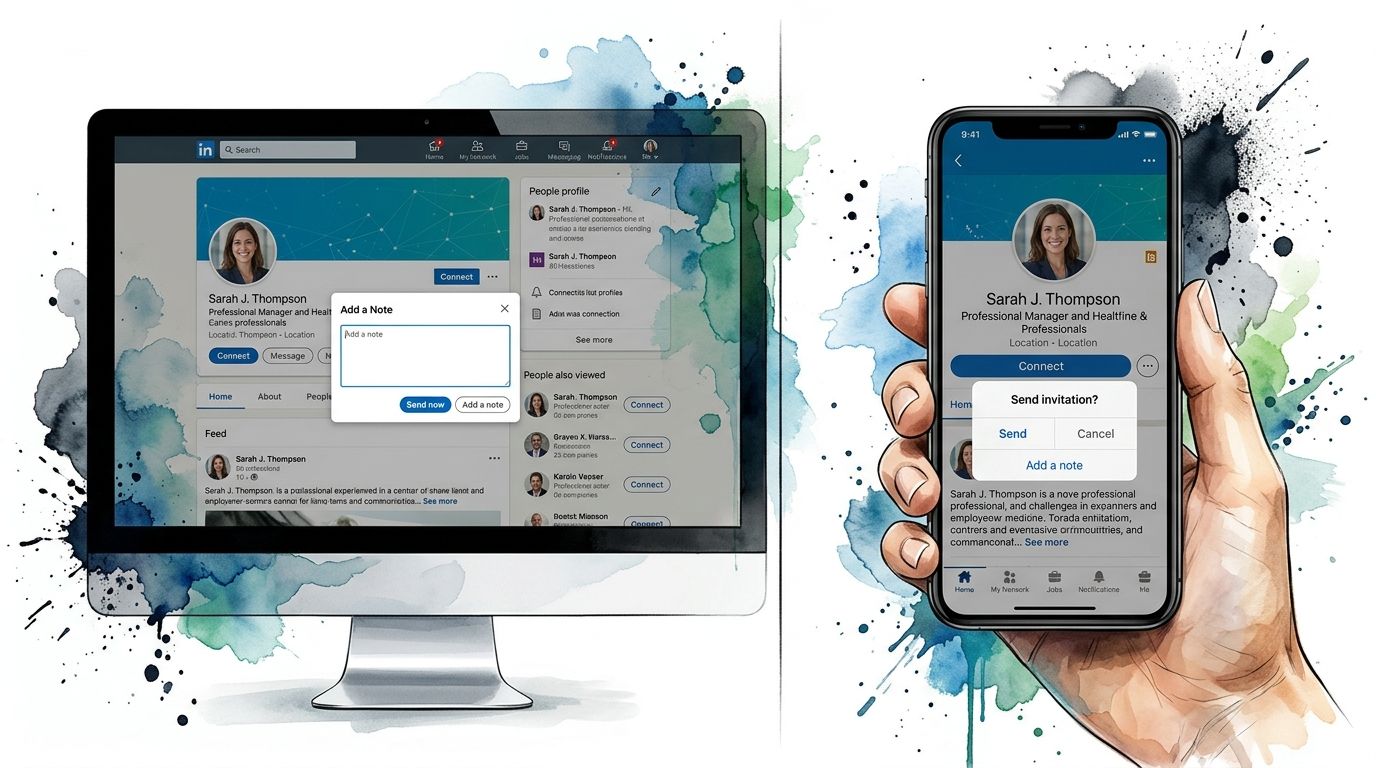
Open the person's profile, choose Connect (or More and then Connect when the button is hidden), add a personal note if you want to, and select Send invitation. The invitation asks them to become a 1st-degree connection.
The clicks are easy. What decides the outcome is whether your note and your profile make the invite feel specific, credible and low pressure.
On desktop:
- Go to the member's LinkedIn profile.
- Select Connect. If the button isn't there, open More and pick Connect.
- Click Add a note if you want to personalize the invitation.
- Write a short note and select Send invitation.
On mobile: if you want to include a note, avoid the Connect button, because that route often sends the invite with no note at all. Open More, choose Personalize invite, write the note and send it.
LinkedIn hides Connect once you're already connected. If Follow is the only button, the person's settings may restrict who can invite them, or LinkedIn may offer a different route on that profile.
Does a connection request make someone follow you?
No. Connecting and following are separate actions. Connect asks for a two-way 1st-degree relationship, while Follow only shows you a person's public posts and updates without making you connections.
A person can follow you without accepting your request, and accepting a request is a different action from following. If you want to message each other directly and be closer in the network, you need Connect; Follow alone won't do it.
Why can't I send a connection request?
When Connect is missing or LinkedIn blocks the invite, the cause is usually practical:
- Invitation limits: LinkedIn caps the number of requests you can send. Once you hit the weekly or account limit, new invites pause until some pending ones clear or the period resets.
- Too many pending invites: a long Sent list can slow down or block new requests, so withdraw old invites before sending more.
- Restrictions: a temporary restriction, an incomplete profile or the recipient's own invitation settings can hide Connect.
- No email on file: LinkedIn won't let you send invitations until your account has a main email address set.
Also check whether you're already connected, whether an invite is still pending, or whether the profile only offers Follow. Clear the blocker first, then send a cleaner and more relevant request.
What makes a connection request get accepted?
People judge a request in seconds. One benchmark puts the decision at 3 to 5 seconds and says personalization can more than double acceptance rates. In one reported case, moving from generic outreach to personal requests lifted acceptance from about 20% to just over 45%, according to Bear Connect's benchmark on LinkedIn requests.
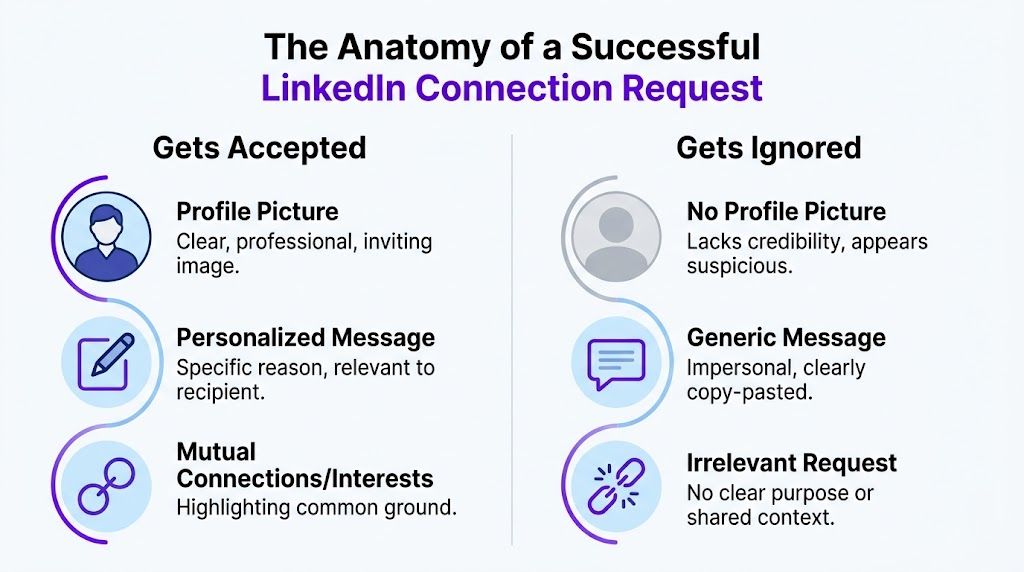
With so little time, an accepted request needs three things: a believable profile, a reason to connect that makes sense at once, and a short note that removes doubt without adding pressure.
Your profile is read before your note
The note often comes last. First the person scans your photo and headline and checks whether the profile looks active and real.
A vague headline, a missing photo or an unfinished profile means even a decent note has to work harder. The request feels riskier because the recipient can't place you quickly.
- Photo: clear, professional and recent.
- Headline: what you do, in plain English.
- Activity: proof that you exist beyond one outbound invite.
The LinkedIn headline generator helps if your headline needs work.
A clear reason beats a clever line
A brilliant note isn't required. A reason that makes sense straight away is.
Good reasons usually come from one of these:
- a recent post of theirs
- an event you both attended
- a mutual connection
- similar work
- a timely professional reason to keep in touch
This guide on how to connect on LinkedIn the right way makes the same argument: the wording matters less than matching your request to the way you found the person.
The note should remove friction
Strong notes don't try to impress anyone; they take away uncertainty. Build yours from three parts:
- Context: where you found them or what made you reach out.
- One concrete observation: a detail that shows the note wasn't mass-sent.
- A light reason to connect: no pitch and no forced next step.
Rule of thumb: if you could paste the note onto ten profiles without changing a word, it is too generic.
Warm the contact up a little before you send. Follow them, read a post and leave a genuine comment, so your name looks familiar when the request arrives. If you also want your own recent posts to show some activity before outreach, LinkedIn likes on LinkedInLikes come from members who react by hand from their own accounts.
How long can a LinkedIn connection note be?
According to LinkedIn Help on personalizing invitations, free accounts can add a personal message to up to three connection requests a month, and each message can run to 200 characters. Premium members can send unlimited personalized invitations, although limits on the number of connection requests may still apply.
Look at the character counter in LinkedIn's invite window before you send. LinkedIn tests product limits, so trust the Help article and what you see in the product over older blog posts. Some third-party guides still quote a 300-character limit; go with LinkedIn Help's current figure of 200 characters for personalized invitations.
Which connection request templates work?
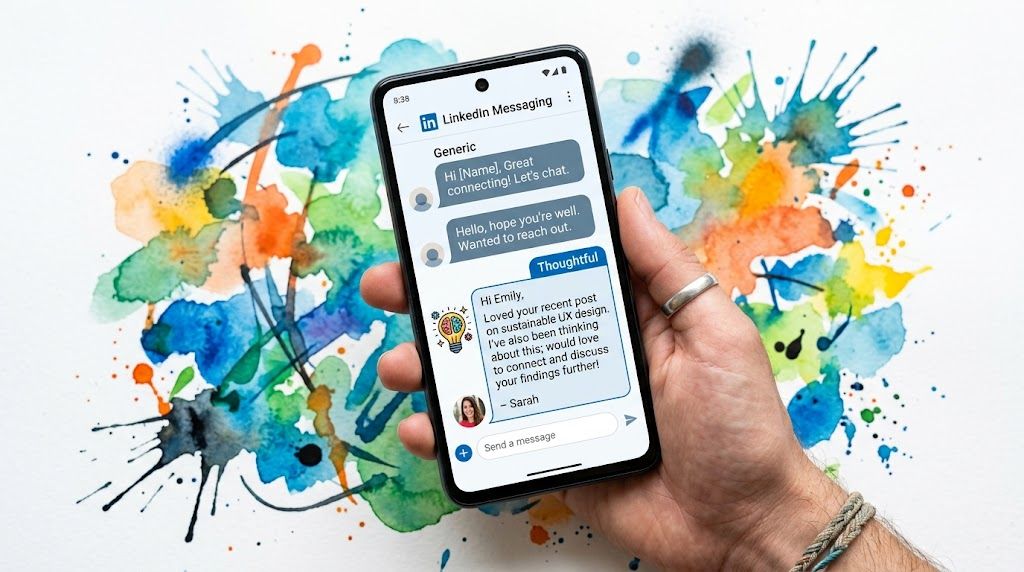
Templates are useful when you keep the structure and swap in a real detail that fits only one person. Copying them word for word does more harm than good, and that one detail is what separates a thoughtful message from one that gets dismissed at a glance.
Data from PhantomBuster's analysis of LinkedIn connection messages puts a good benchmark at 40%+ acceptance. Targeted requests with genuine personalization can reach 55-70%, while generic ones often land around 12-18%, which is why the quality of the message matters so much.
After a meeting or an event
If you have already met, skip the formal language and help them remember you.
Template:
Hi [Name], it was good to meet you at [event]. What you said about [specific topic] stuck with me, and I'd like to stay in touch here.
Why it works:
- It jogs their memory.
- It refers to a moment you shared.
- It keeps the request from turning into a sales move.
Weak version: "Nice meeting you. Let's connect." A stronger version mentions the panel they spoke on, the question they asked or the topic the two of you discussed after the session.
For someone whose work you admire
This suits respected people in your field, writers, operators and creators. Avoid empty praise.
Template:
Hi [Name], I read your post about [topic], and your take on [specific detail] was useful. I work on similar problems and would be glad to connect.
The middle sentence carries this note. "Loved your content" is forgettable, while one concrete takeaway shows that you actually read the post.
When you share a mutual connection
A mutual contact can lower resistance, but only when the link is relevant.
Template:
Hi [Name], I see we both know [mutual connection]. I've been following your work on [topic] for a while and would be glad to connect here.
Don't drop names at random. If the shared contact is weak or distant, leave them out; social proof works when it feels natural.
Cold outreach with a clear fit
Sometimes you haven't met, haven't commented and don't share a contact. A good request is still possible if the fit is obvious.
Template:
Hi [Name], I work in [industry/role] and found your profile while researching [topic/company/space]. Your background in [specific area] caught my attention, and I'd be glad to connect.
This is where many people push too hard. Don't ask for a call, don't ask to pick their brain and don't attach a pitch.
The first note should create familiarity. It shouldn't leave the other person owing you something.
A simple personalization formula
Before sending, test each note against three questions:
- Context: why this person, and why now.
- Specifics: one detail taken from their work.
- Reason: a low-pressure reason to connect.
Leave one of them out and the note gets weaker.
What not to send
These notes usually do poorly:
- "I'd like to add you to my professional network": it says nothing about why you picked them.
- "I think we could help each other": too vague, and it sounds transactional.
- A mini pitch: the invitation is the wrong place for your offer.
- Forced flattery: people spot filler praise quickly.
The cleanest note is often the shortest one that still proves why you're relevant.
For more examples, see our guide to the LinkedIn connection message.
Should you send requests from desktop or mobile?
The device makes more difference than most people expect. Desktop makes it easier to read the full profile, write a careful note and catch mistakes; mobile makes it easier to move fast and send a blank invite by accident.
That matters. A blank request can work when you've just met someone or already talked with them, but for colder outreach it usually wastes the chance.
Desktop suits careful outreach
For high-intent requests, desktop wins on three counts:
| On desktop | On mobile |
|---|---|
| The full profile is easier to review | It's easier to act too quickly |
| Editing the note is simpler | The note gets skipped more often |
| Planning a batch works better | Quick follow-ups work better |
Mobile is fine for warm contacts. Use desktop when the request itself needs care.
Pending invites need regular cleanup
Old pending requests slowly clog your outreach. They also make results harder to read, because your sent list fills with people who were never likely to accept.
To withdraw a pending invite, go to My Network, then Manage, then Sent, open the invitation and choose Withdraw. After a withdrawal LinkedIn typically applies a cooldown of about 3 weeks before you can invite that person again, so think twice if you still hope to try again soon.
An analysis of 16,492 invitations found that 21% of acceptances came within the first 60 minutes and 88% within 7 days. After 30 days, pending invitations were as good as dead and worth withdrawing.
That gives you a simple routine:
- Watch how quickly acceptances come in.
- Review pending invites after one week.
- Withdraw stale requests after a month.
- Try again with a better message or a better list of people.
A pile of old pending requests is feedback about your targeting or your note.
Be careful with outreach tools and extensions
Outreach tools can save time, but the wrong setup nudges you into sloppy habits. If you're comparing options, Reachly's review of LinkedIn extensions helps you decide which parts of the process a tool should handle and which should stay manual.
Write requests by hand for anyone who matters. Let tools handle organization, reminders and research, and keep the judgment for yourself.
If your goal is a larger network, the LinkedIn connections page on LinkedInLikes explains how members send each other connection requests by hand. Keep your own invitations to other people personal either way.
What should you do after someone accepts?
Once a person accepts, the two of you are 1st-degree connections. That usually opens up direct messages and gives you more profile visibility than you had as a stranger or follower, so acceptance gives you access and marks the start of the relationship.
It is the first sign that the person is open to hearing more from you, and it is where most LinkedIn networking falls apart: people either do nothing after the acceptance or rush in with a pitch, and both waste the moment.
Coverage collected in Kondo's look at LinkedIn alternatives and community-led networking shows growing interest in specialized communities and in relationship-building outside LinkedIn. Strong networkers don't treat LinkedIn as a closed system; it is one place among several where they keep in real contact with people.
Right after they accept
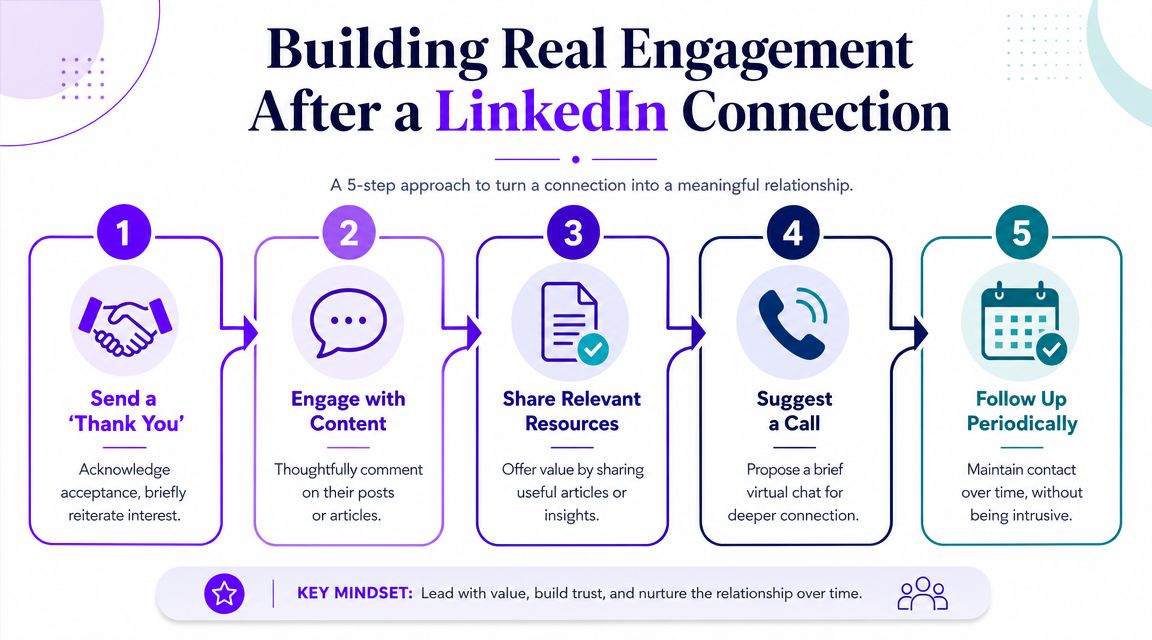
A thank-you message isn't always needed. When one fits, keep it short:
- thank them for connecting
- refer briefly to the original context
- attach no request
That keeps things easy. You acknowledge the new connection without trying to cash it in.
A public follow-up often beats a private one
Private messages have their place, but a comment is often stronger. A useful comment on their next post does three things at once:
- it reminds them who you are
- it shows your interest was real
- it adds something visible in public
That works far better than landing in their inbox with a request for 15 minutes of their time.
If you want a relationship, behave like a peer in their circle and skip the stranger asking for access.
Build a pattern of light support
Strong LinkedIn relationships grow from repeated, light interactions; one perfect message won't do it. A simple sequence:
- Connect with context: the request makes sense on its own.
- Acknowledge the acceptance: briefly, with no pressure.
- Comment on one or two posts: add substance, never filler.
- Share something relevant later: only if it matches their interests.
- Move off LinkedIn only once there's momentum: a call, a collaboration, a referral or a shared project.
Comments matter here too. If you want your own posts to stay active as new connections arrive, members on the LinkedIn comments page of LinkedInLikes write comments by hand in their own words. LinkedIn works better when your account looks alive and part of ongoing conversations.
How do you measure your connection request results?
Treat sending connection requests as a professional skill you can measure and improve. Luck, charm and copy-paste tricks have little to do with it.
Current LinkedIn advice is to track your acceptance rate directly: if 40 out of 100 requests are accepted, the rate is 40%, as LiSeller's guide to tracking acceptance rates explains. Putting a number on it turns networking into something you can work on.
A working checklist
- Tidy your profile first so the request has credibility behind it.
- Send fewer, better invites tied to real context.
- Write notes that show relevance instead of effort.
- Use desktop for careful outreach when precision matters.
- Withdraw stale pending requests before they pile up.
- Treat acceptance as the start, then build familiarity through comments and steady contact.
- Track your numbers so you know which audiences and notes work.
Review your sent and accepted invites every week, and patterns show up quickly: some roles, industries and note styles will do better than others. Keep what works and drop what doesn't.
If you also want a network that reacts to your posts after connecting, LinkedInLikes members can follow and support your profile by hand through the LinkedIn followers page. The aim is a profile that looks active, credible and worth replying to, and the best network is the one that answers, notices and remembers you, whatever its size.
More LinkedIn guides
- How to get more connections on LinkedIn
- How to network on LinkedIn
- Connect for connect on LinkedIn
- How to grow on LinkedIn in 2026
Next step: pick five people you want to reach this week, comment on a recent post from each, and send your requests with a note built from context, one detail and a light reason to connect.
Frequently asked questions
Open the person's profile, select Connect (or More and then Connect), click Add a note if you want to personalize it, and select Send invitation. On mobile, use More and Personalize invite to include a note.
LinkedIn Help puts the limit at 200 characters for personalized invitations. Free accounts can personalize up to three requests a month, and Premium members can personalize as many as they like.
No. Connect asks for a two-way 1st-degree relationship, and Follow only shows someone's public posts. They are separate actions.
Common causes are the weekly invitation limit, too many pending invites, a restriction on your account or the recipient's settings, or no email address on your account. Also check whether you're already connected or an invite is still pending.
In an analysis of 16,492 invitations, 21% of acceptances came within the first hour and 88% within 7 days. Requests still pending after 30 days are unlikely to be accepted.
The invite disappears from the person's list, and LinkedIn typically makes you wait about 3 weeks before you can invite them again.
On LinkedInLikes you can create a connections task with your profile link. Members send requests by hand from their own accounts, and you spend points that you collect by connecting with other members.